Ports and Previews: Open Your Dev Server From Any Device
How Coder IDE's Ports panel finds your dev servers, who can open a preview link, and how to preview, copy, close, hide or stop a port from any device.
The Coder IDE team · · 6 min read
You start npm run dev on your computer and want to see the result on the phone in your hand. Normally that means LAN addresses, host flags or a public tunnel. In Coder IDE, the dev server shows up in the Ports panel, and you open it from there. This post covers how ports are found, who can open a preview link, and every action the panel gives you.
Every dev server, found for you
The Ports panel lives in the editor's sidebar, under the Ports tab. It lists the dev servers that are listening on your computer, and it doesn't care where you started them:
- In the editor's own terminal.
- In VS Code, Cursor or any other editor on your computer.
- In any terminal window on the computer, including one Claude Code started.
A new server shows up within a few seconds, with a short "Port 5173 is up" notice. A server that started on a port something else was using when the editor opened still appears once it's listening.
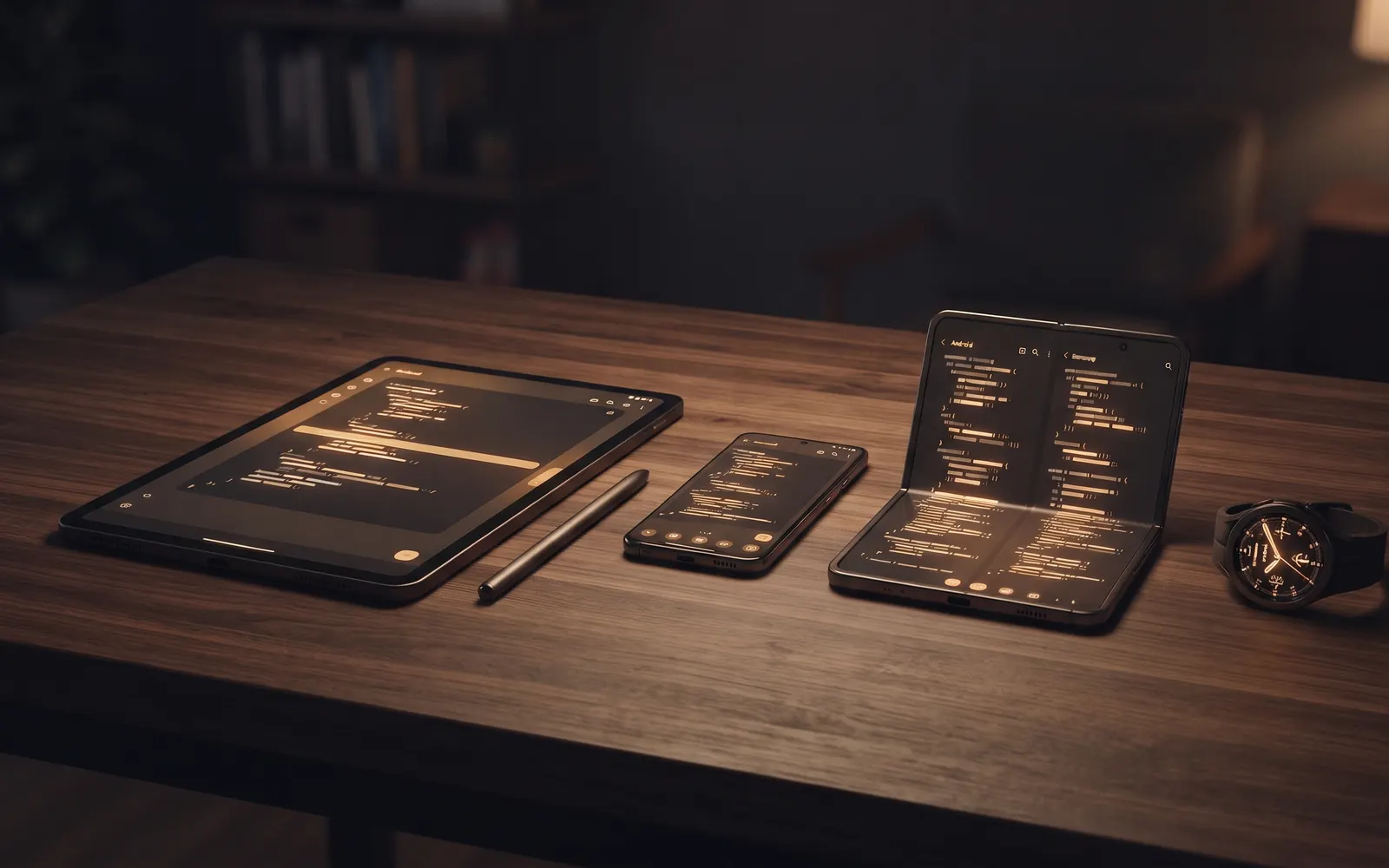
The same list is in the Ports tab of the Android app, across all your online computers, and in the desktop app on the computer itself.
What each row tells you
Each row shows the port, such as localhost:5173, and what's running on it, such as the dev server command and the project that started it. That second line matters when you run several projects at once: you can tell the API from the frontend without guessing from port numbers.
A small label beside the port tells you the state of its link. Secure link means the connection is decrypted only on your computer. Not allowed means previews for that port are switched off. Tunnel closed means you've closed the link for now, and Device offline means the computer itself isn't connected. If a port has no link, the row says why in plain words.
Who can open a preview link
This is the part worth being precise about. A preview link opens only for you, signed in to Coder IDE with the account that owns the computer. The first time you open one, you're asked to sign in, and Coder IDE checks that the computer is yours before the preview loads.
What that means in practice:
- Anyone else is turned away. If someone gets hold of the link, it doesn't load for them, because they can't sign in as you.
- A copied link is for your own devices, such as opening the preview on a second phone or a tablet. It isn't a way to share a work-in-progress with a teammate or a client.
- Some computers ask you to allow each port first. On computers that use secure links, a port has no link at all until you switch on Allow preview for it, and none is allowed by default. Switch it off and the port closes again.
- You can cut a link off at any time. Closing a port's tunnel refuses its link until you reopen it, and hiding a port closes its link too.
- You can sign out of every preview at once. Sign out of previews everywhere in Settings makes every open preview ask you to sign in again.
If you need a link that anyone can open, that's a different tool, such as a public tunnel with its own access rules. Opening localhost on your phone compares those options.
Opening a preview next to your code
The fastest way to check a change is to see the code and the running app together. The Preview button in the editor's sidebar does that. It reads "Preview port 5173" and opens your running dev server beside the editor, so you can edit a component and watch it update. It offers only the apps running from the folder you have open, so another project's server doesn't get in the way. On computers that use secure links, the preview opens in its own browser tab instead.
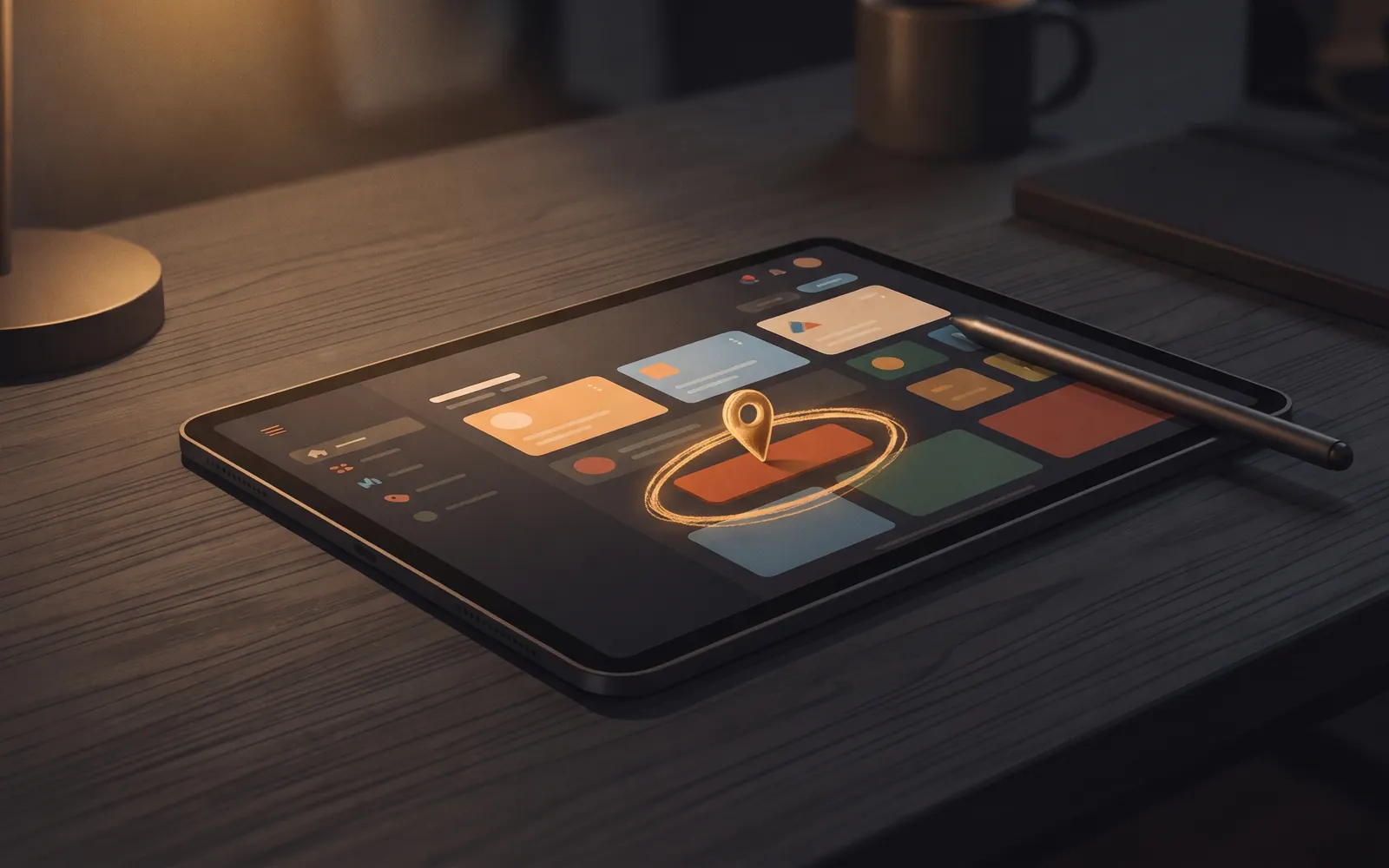
From the row's menu you can also open the preview in a new tab. While a preview is docked beside the editor, you can annotate it: tap, pin and sketch on the page, then send the screenshots straight to Claude in your editor.
In the Android app, tap a port to open its preview inside the app. On a tablet, the preview opens in a pane beside the list. On Android TV, selecting a port opens it full screen.
Open, copy, close and stop
Every port's actions sit in one menu. In the Android app's Ports tab, press and hold a port to open it in your browser, copy its link or allow its preview. In the editor's Ports list, in the browser or the app, the menu button at the end of each row has the full set:
- Open in new tab opens the preview in a separate browser tab. If the tunnel was closed, it's reopened first.
- Copy link copies the preview address, for opening on another device you're signed in on.
- Close tunnel and Reopen tunnel turn the link off and on without touching the dev server.
- Stop process ends the dev server on your computer, after you confirm. You don't need to find the terminal it's running in. The editor's own port can't be stopped this way.
If the computer couldn't do what you asked, the message tells you why. For example, it says so when nothing is listening on that port anymore, or when the editor isn't connected yet.
Hiding ports you don't care about
Some ports are noise: a database, a language server, a tool's internal port. Choose Hide and close link and the port leaves the list and its link is closed, since a port you can't see shouldn't stay reachable.
Hidden ports aren't gone. When any are hidden, a Show hidden switch appears at the top of the list with a count. Turn it on to see them dimmed, then choose Show in list to bring one back. If hiding closed its link, bringing it back reopens it.
When a preview doesn't load
A blank page is the least helpful error there is, so Ports tries hard not to give you one. When a preview can't load, it tells you which of two problems you have:
- Nothing is listening on that port. The dev server stopped, crashed or never started. Check the terminal and start it again.
- The server isn't answering. Something is listening but not responding, which usually means it's still starting, stuck or busy. Give it a moment, or restart it.
You may also see "Setting up secure previews" on a computer that's getting ready for secure links. It finishes on its own. If it couldn't be set up yet, the row says so and keeps retrying.
Wrap-up
The Ports panel finds every dev server on your computer, shows what each one is, and gives you a preview link that only you can open. Preview puts the running app next to your code, and every port's actions, from copying the link to stopping the server, are one menu away on any device. If Claude Code is making the changes, reviewing its diffs on your phone pairs well with a live preview.
Start free. The free plan covers one computer, and Pro adds unlimited devices.