A Tour of the Coder IDE Android App
A tour of the Coder IDE Android app: devices, a touch-ready VS Code with a key bar and S Pen support, ports, Claude sessions, and layouts from watch to TV.
The Coder IDE team · · 6 min read
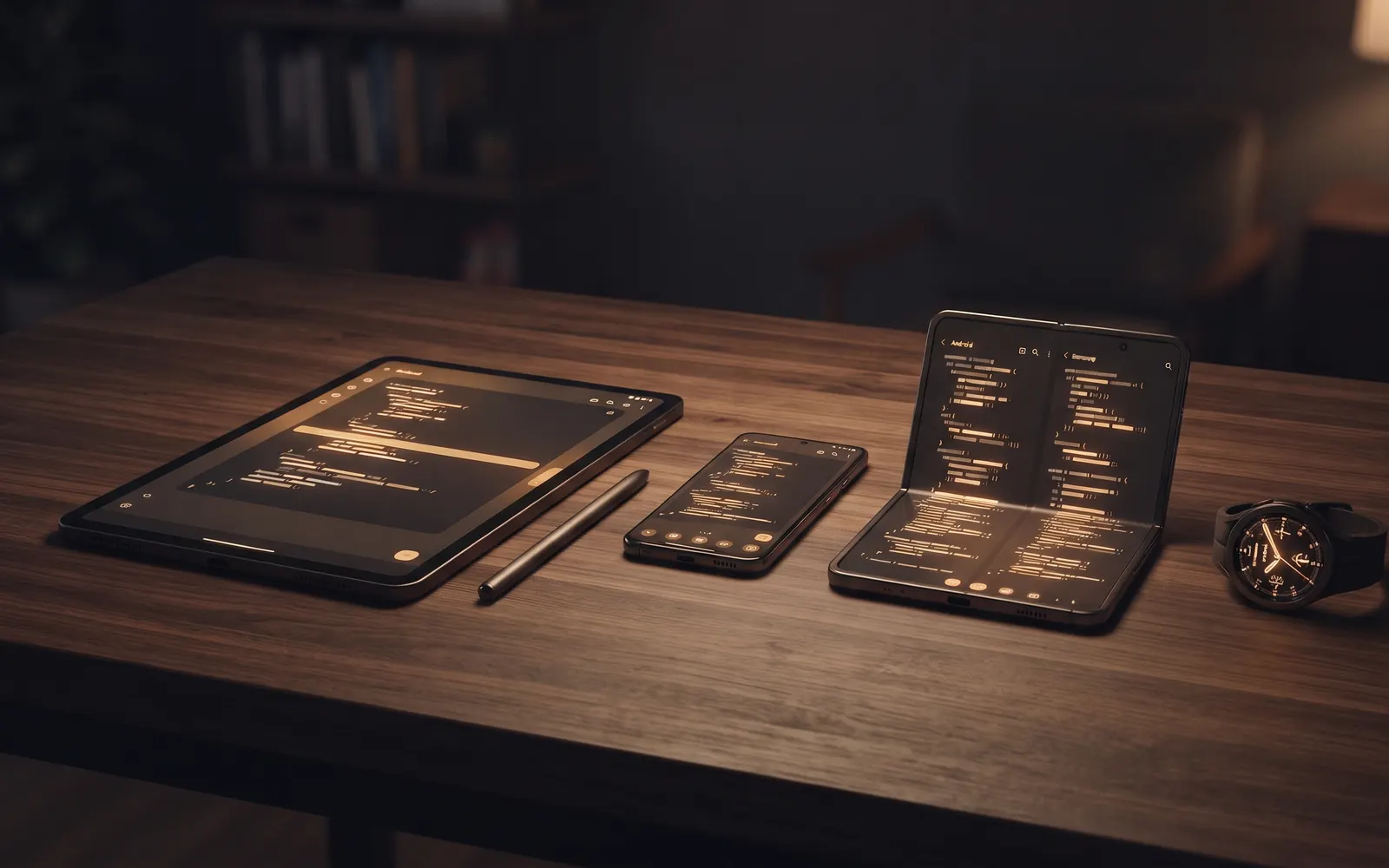
The Coder IDE Android app opens the VS Code running on your own computer, and adds the things a touchscreen is missing. It's one app for phones, foldables, tablets, Android TV and Wear OS watches, with a layout made for each. This tour goes through it tab by tab: Devices, the editor, Ports, Sessions and Voice, then the settings and how updates work.
Getting the app and signing in
Download the app from the Coder IDE website. The site's Android link always points to the newest version. The app opens straight to sign-in: pick your Google account from a quick pop-up without leaving the app, or enter a one-time code sent to your email.
If you haven't set up a computer yet, do that first. One install command and an approval from your browser, covered in how Coder IDE works. The app picks up whatever computers are already on your account.
Navigation adapts to the screen. On a phone, a floating tab bar sits at the bottom. On a foldable or tablet it becomes a navigation rail down the side. The tabs are the same everywhere: Devices, Sessions, Voice, Ports and Account.
Devices: your computers at a glance
Devices lists every computer on your account, whether it's online, and its exact OS version. Under each one are its projects, one editor per folder, with your most recent one shown and a link to the rest. Tap one to open it.
Devices is also where you hear about your computers. You can get a notification when one goes offline, or when a computer on your network wants to sign in to your account. The approval screen shows which computer is asking, and you can approve or deny it right there.
If one of your computers runs Windows, you can also watch its screen live from your phone, on any of its monitors.
The editor, made for touch
The editor is your real VS Code, with your extensions, settings and terminal. The app wraps it with a few controls that make it work on glass:
- A key bar above the on-screen keyboard with Esc, Tab, Ctrl, Alt, arrow keys and Save. It hides itself when you type on a hardware keyboard.
- Toolbar buttons to toggle the sidebar and the terminal, plus separate Go to file and Command Palette buttons, so you don't need a shortcut for any of them. Full Screen gives the editor the whole display.
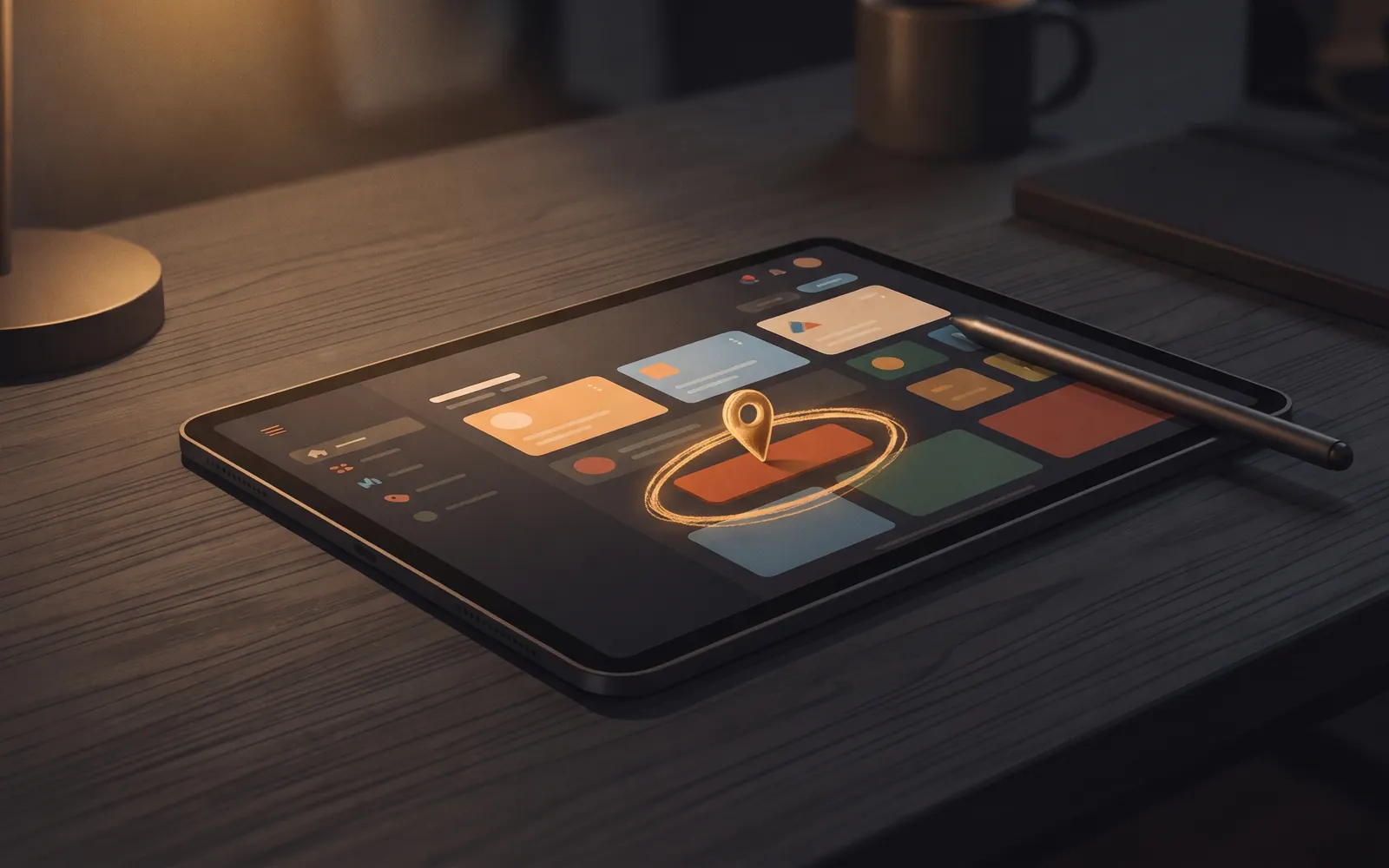
- S Pen Air actions on Samsung devices: press the pen button for the Command Palette, double-press to save, and swipe or circle to switch tabs, toggle panels, undo and redo.
- Stylus selection on tablets: dragging with a stylus selects text in the editor instead of scrolling the page.
The app keeps your editor open when you go back to Devices, and recovers on its own if Android closes it in the background. Your terminals, and the dev servers running in them, survive a reload. Claude Code keeps working on your computer while your phone sleeps or the connection drops. For how this compares to running an editor on the phone itself, see VS Code on Android.
Ports and Sessions
Ports lists the dev servers running on your online computers, with what's serving each port. Tap a port to open its preview inside the app. Press and hold it for more: open it in your browser, copy its link, or switch on Allow preview for computers that need it. On a tablet, the preview opens in a pane next to the list. There's a full guide to ports and previews.
Sessions shows every Claude Code session on your computers, arranged by project folder (folder = project). Switch between All (selected by default), Active (running or waiting on approval), and Archived tabs. Press and hold any session to archive or unarchive it, or use the ⋯ menu in the chat. In chat, a floating Queued Messages tray above the composer lets you queue prompts while Claude is busy, send now (→), edit inline (✏️), or delete (🗑️). If your computer is offline, you can still queue prompts safely without getting stuck at "Sending…". On tablets, the list and the open session sit side by side. The Sessions post covers notifications, approvals and starting new sessions in detail.
Voice, briefly
The Voice tab lets you talk to Claude on your computer. Hold the mic, say what you want done, and hear the answer read back. It's handy when your hands are busy, or when typing a long instruction on a phone keyboard would take longer than saying it. Requests that need a careful look still ask you to review them on screen first. The voice control post covers it properly.
Layouts for every screen
The app has a layout for each kind of device, so it's worth using each for what it does best:
- Phones are best for checking in: reading code, answering a session, opening a preview. Landscape gives the editor more room.
- Foldables unfolded behave like a small tablet, with the navigation rail and room for the file tree beside the editor.
- Tablets with a keyboard case come close to a laptop, and the stylus features earn their place here.
- Android TV gets pill tabs across the top that you move through with the D-pad. Selecting a port opens its preview full screen, which is a good way to show your app to someone in the room. To sign in, the TV shows a code, and you approve it from your phone.
- Wear OS watches get a simple home screen with your machines and any pending approvals. Short requests can be allowed right on the watch, anything can be denied, and longer requests point you to your phone.
Appearance, notifications and updates
Account puts your settings first. Under Appearance, choose Light, Dark or System, and the editor follows the app's choice. Under Notifications, switch each alert on or off for this device: sign-in requests, machines going offline, Claude needing approval, Claude waiting for you, and a Claude session ending unexpectedly.
The About section shows your app version, with a link to what's new in the Android app.
Updates don't need any attention. The app checks for new versions and asks you to install each one as soon as it's out, then installs it in a tap. Since the editor inside the app is the live web app, editor improvements reach you without an app update at all.
Wrap-up
The Android app is the VS Code on your computer, plus a key bar, stylus support, ports, Claude Code sessions and a layout for every screen from a watch to a TV. It works alongside the browser, so you can start on a tablet and finish on a laptop with the same editor and the same sessions.
Start free and download the app from the Coder IDE website. The free plan covers one computer, and Pro adds unlimited devices.