Annotate Your App Preview and Send It Straight to Claude
Tap, pin and sketch on your running app preview in Coder IDE, then send the screenshots and notes to Claude Code in your editor. Here's a real UI-fix loop.
The Coder IDE team · · 6 min read

"The button on the pricing page is a bit off, and the price wraps weirdly on small screens." Every developer has typed some version of that sentence into a chat with Claude, then spent the next ten minutes explaining which button, which page, and what "a bit off" means. Annotate in Coder IDE skips the explaining. You mark up the running app itself, and Claude gets the screenshot, your notes and the element you meant.
Why describing UI bugs in words is slow
Claude Code is good at changing code. It's much less good at guessing which of the four buttons on a page you're unhappy with. When you describe a visual problem in text, you end up doing a translation job: from what you see, to a CSS selector or a component name, to a sentence Claude can act on.
Screenshots help, but on a phone they're awkward. You take one, crop it, find a way to get it onto your computer, and drag it into the chat. By then you've lost the thread.
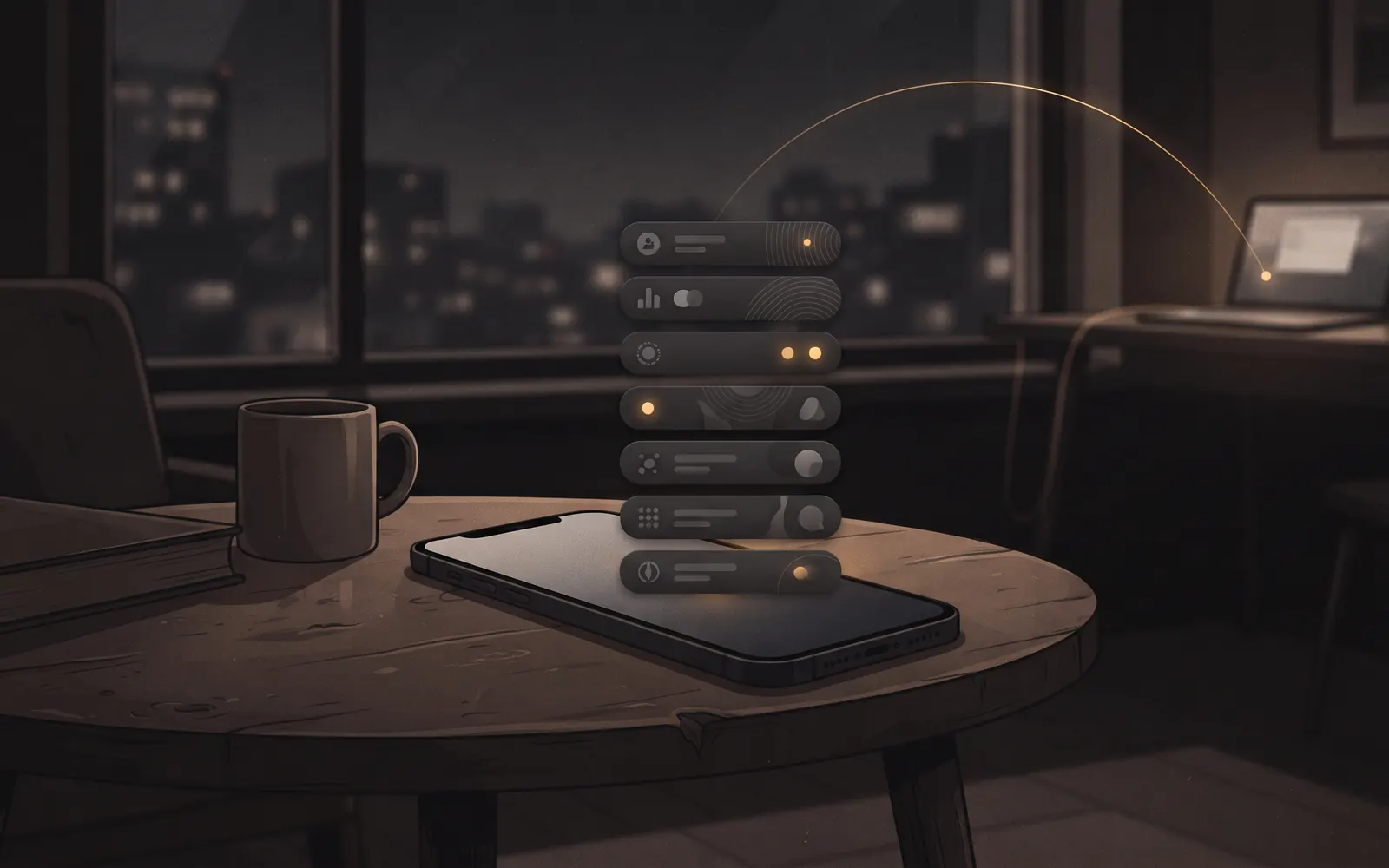
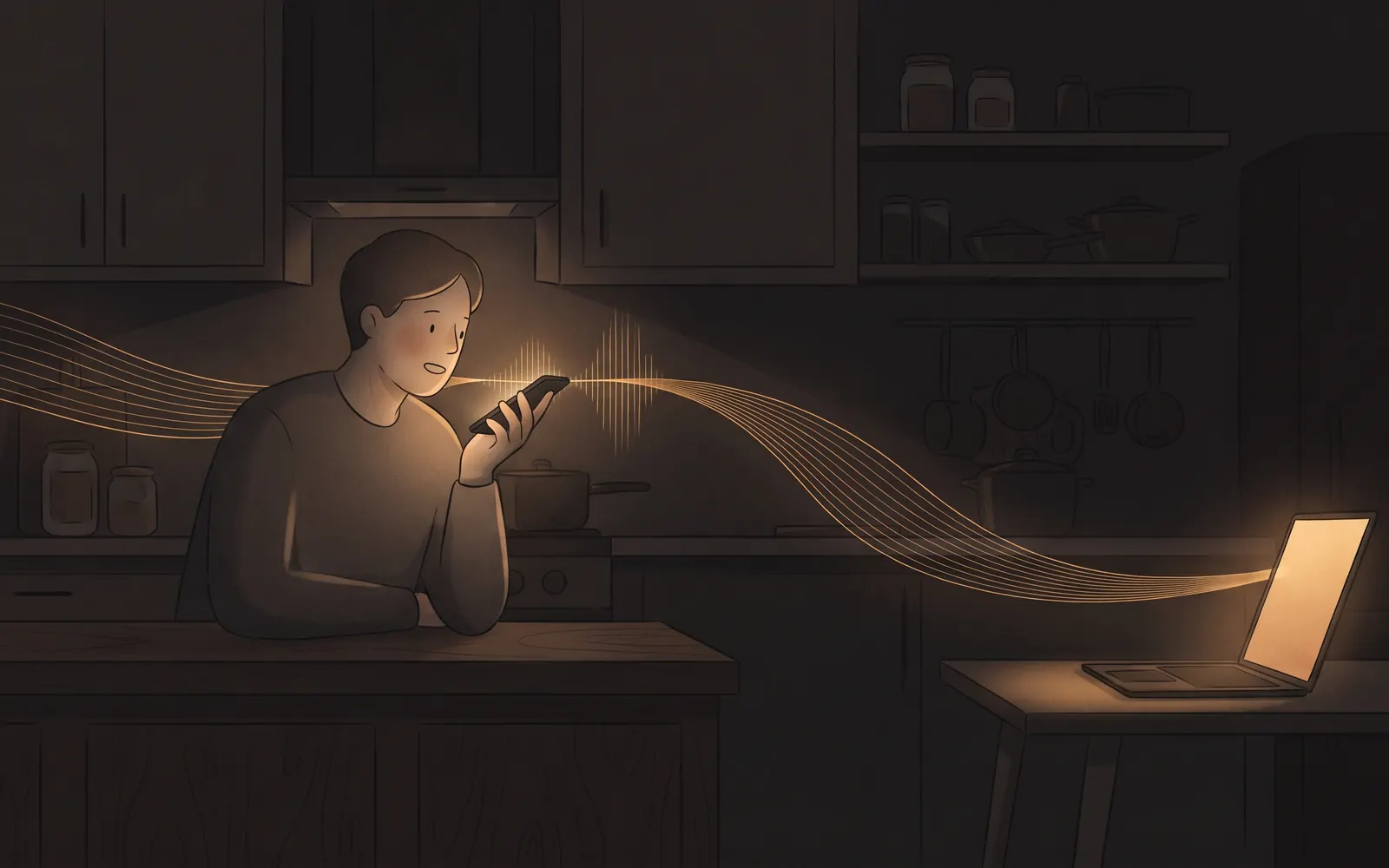
Annotate puts that whole loop inside the preview of your dev server. You point at the thing, say what's wrong, and send it to the Claude chat in your editor without leaving the page.
Open the preview next to your code
Annotate works on the previews Coder IDE already gives you for the dev servers running on your computer. If you haven't used those yet, ports and private previews covers how they work.
- In the browser, the Preview button beside the editor opens your running dev server next to your code. You can drag the edge to resize it, so the Claude chat and the app sit side by side.
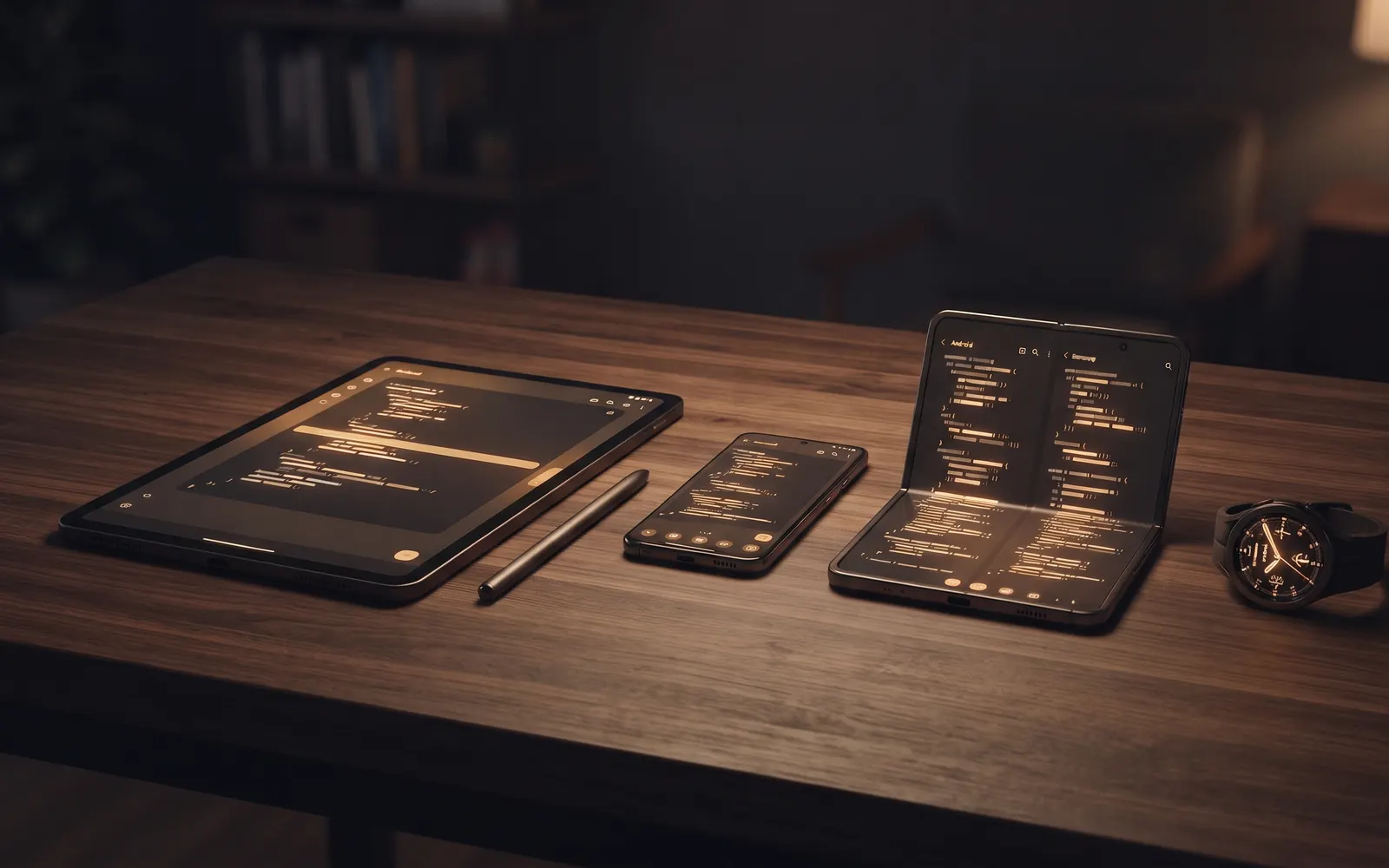
- In the Android app, open a port's preview from Ports and you get the running app in the Coder IDE app itself, with an Annotate button beside it.
Tap Annotate to start. On a computer, Alt+Shift+A toggles it from anywhere in the preview.
Annotate mode: select, pin and sketch
When annotate mode starts, the page freezes. Animations and videos pause and scrolling stops, so the thing you're pointing at doesn't move while you mark it up. A toolbar appears with a handful of tools:
- Select. Tap an element to highlight it. Fingers are imprecise, so a selection bar gives you Parent and Child buttons and a row of the element's ancestors to step to exactly the one you mean. Drag across empty space to select an area instead.
- Pin. Long-press on a phone, or click on a computer, to drop a numbered pin on an element and type a note for it, like "make this full width".
- Draw. Pen, Arrow, Rectangle and Text, in red, yellow, blue or an automatic black or white that stays readable on any background. Tap the draw button again to switch tools or ink.
- Blur. Drag a box over anything you don't want in the screenshot, such as an email address or an API token, and it's pixelated in the capture.
- Undo and Redo, for when a sketch goes wrong.
When you need to reach a different part of the app, tap Live. The page works normally again, so you can scroll, open a menu or navigate. What you'd marked so far is kept as a screenshot, and the next tool you tap starts a new one. You can collect up to six screenshots in one annotation, each with its own pins and notes.
Send it to Claude
Tap Send and Coder IDE opens a review panel. This panel belongs to Coder IDE, not to the app you're previewing, so nothing reaches Claude until you've looked at it here.
You'll see your screenshots, every pin with its note, and a box for what you want Claude to do. It's optional when the pins already say it all. Below that sit a few pieces of context Claude would otherwise have to ask for:
- the page address and the size of the screen you were looking at;
- in many React apps, the source file and line that renders the element you picked, which you can tap to open in the editor;
- any console errors the page logged.
Leave out any of these with a tap. Then pick where it goes: an existing Claude chat in that project, or a new chat. Press Add to Claude chat.
Claude doesn't start working the moment you press it. The message, with your screenshots attached, appears in the chat box in your editor and waits for you. On a phone, Coder IDE takes you straight to the editor, where it reminds you to review and press Enter to send. You always get one last look before Claude acts.
If your computer can't be reached at that moment, Copy as Markdown puts everything on your clipboard so you can paste it in later.
A real fix, start to finish
Here's what this looks like on an ordinary evening, from a phone on the sofa.
You're building a pricing page. Your dev server is already running on your computer, started earlier from the editor's terminal. In the Coder IDE Android app, you open Ports and tap the preview. The pricing cards look wrong: the "Most popular" badge overlaps the plan name, and the yearly price wraps onto two lines.
You tap Annotate. With Select, you tap the badge. It highlights the text, not the badge, so you tap Parent once and the whole badge lights up. You add a note: "overlaps the plan name on narrow screens". Then you switch to Pin, long-press the price and write "keep on one line, shrink the font if needed". A quick red circle with Pen marks the gap you want under the cards.
You tap Send. The review panel shows the screenshot with both pins, the page address, the screen size and the component file for the badge. You type "Fix these on mobile, desktop layout is fine", choose the Claude chat you've been using for this project, and tap Add to Claude chat.
The editor opens with your message waiting in the chat. You read it once and press Enter. Claude opens the component, adjusts the badge position and the price styles, and the preview reloads with the change. You check it, pin one more small thing, and send again.
The whole loop took a couple of minutes, and you never had to describe where on the page anything was.
Keep track of what you've sent
The preview's bar shows a count such as "2 open · 1 resolved". Tap it to see everything you've sent to Claude for that project, newest first, each marked Not sent yet, With Claude or Resolved. Claude marks an annotation resolved when it's done, along with a short note on what it changed.
Your screenshots travel to your own computer, not to our servers. They're saved inside the project so Claude can read them, kept out of your git commits, and cleaned up once Claude has read them. The list of what you sent is kept for a week.
One limit worth knowing: a few apps set a strict security policy that blocks the annotate tools from loading in the preview. When that happens, Annotate isn't offered for that page.
Wrap-up
Annotate turns "the thing on the left is a bit off" into a screenshot, a pin and a note on the exact element, delivered to the Claude chat you're already using. It works in the browser and in the Android app, and it's built for touch first, so a phone is a perfectly good place to review your UI.
If you want Claude's side of the loop to keep running while you're away from the desk, read Claude Code sessions from anywhere.
Try it free. Install Coder IDE on your computer, start your dev server, and open the preview on your phone.