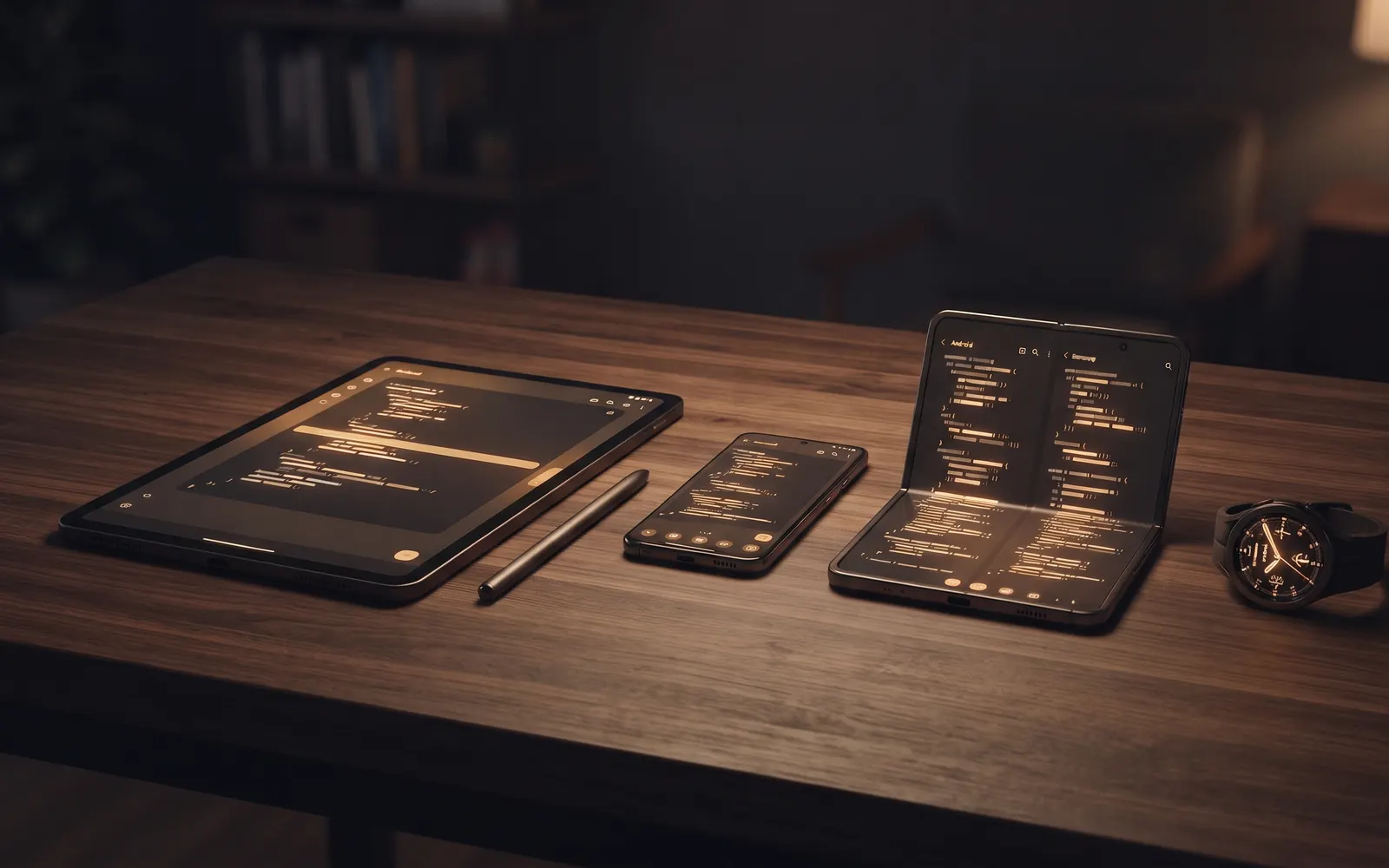
Agent View: Switch Between the Full IDE and a Focused Claude Layout
Agent view in Coder IDE switches VS Code between the full IDE and a focused Claude Code layout in one tap, in the browser and Android app. When to use which.
The Coder IDE team · · 5 min read
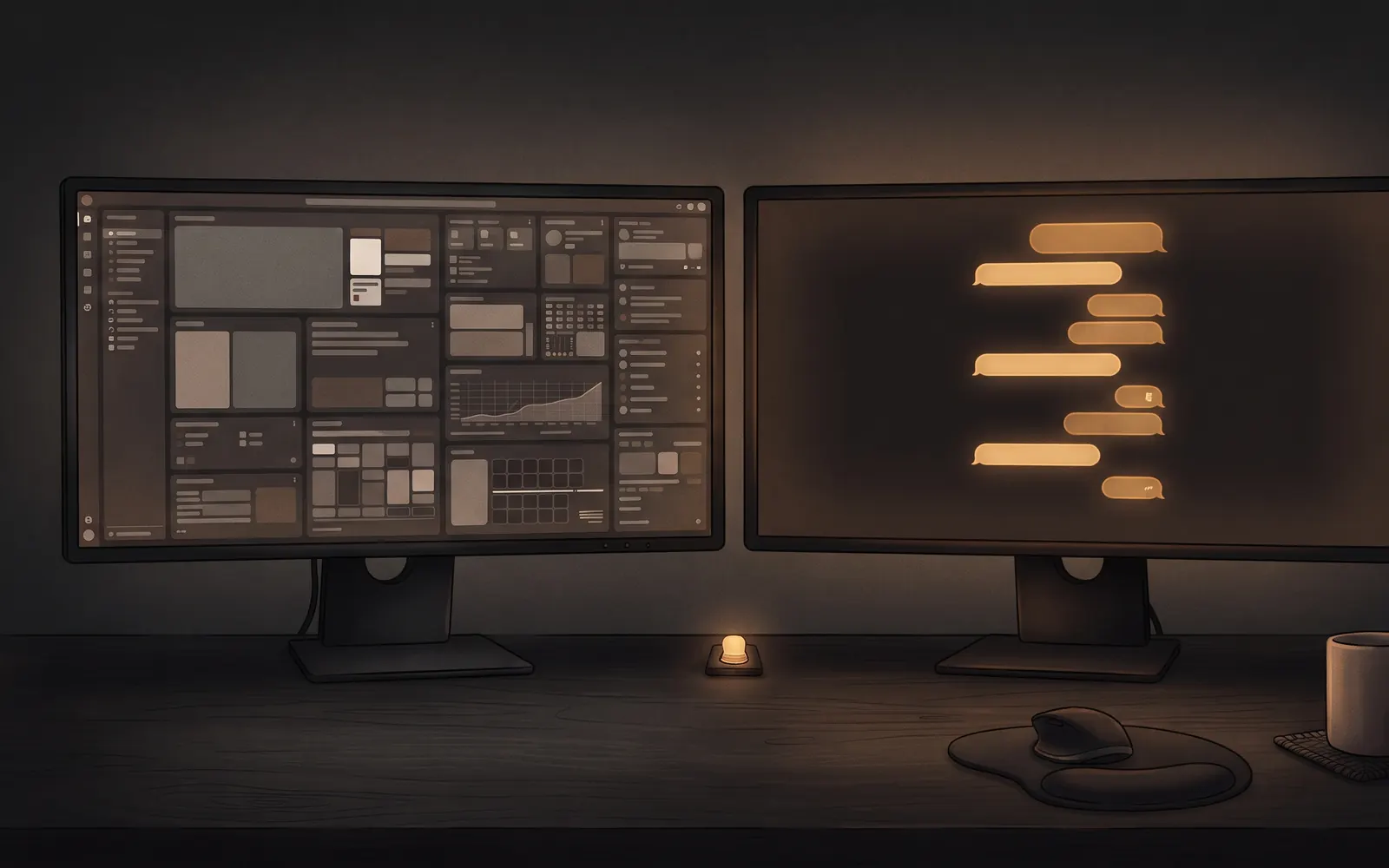
VS Code is a lot of interface for a phone. A file tree, a sidebar, a terminal panel and tabs all compete for a few inches of glass, and when you're working with Claude Code, most of the time you only need the conversation. Agent view in Coder IDE gives you exactly that, one tap away from the full IDE and one tap back. This post covers what it does, how to switch, and when each layout is the better choice.
What Agent view is
Agent view is a layout for the same editor. When you switch to it, Claude Code's chats fill the screen, and the side bars and the bottom panel get out of the way. Nothing else changes. It's still your VS Code, running on your own computer, with the same Claude Code extension, the same project and the same files.
Because it's only a layout, there's nothing to set up and nothing to sign in to. Claude runs where it always runs, on your computer, with the settings and permissions you already have. Switching views doesn't restart anything or interrupt a task Claude is in the middle of.
Agent view works with Claude Code and with OpenAI's Codex extension, whichever you have installed. If neither is installed, VS Code tells you to add one from Extensions.
Switching with one tap
The switch is in the editor's sidebar, at the bottom next to Preview and Dashboard. It reads Agent view while you're in the full IDE. Tap it, and the label changes to IDE view, so the same button takes you back.
It works the same in the browser and in the Android app, on a phone, a tablet or a laptop. On a phone, open the sidebar to reach the button. Your layout choice belongs to that editor, so switching to Agent view in one project's editor doesn't change another.
New chats open as tabs
In Agent view, each Claude Code chat is a tab. Start a new chat and it opens as another tab right inside Agent view, next to the others, instead of dropping you back into the full IDE. You can keep a long-running task in one tab, ask a quick question in another, and switch between them without losing your place.
Chats you started at your desk come along too. When you come back to the editor after a while, the Claude Code chats running on your computer show up there, and they never pop in while you're in the middle of typing. If you open a folder where Claude Code is still working at your desk, Coder IDE tells you so, and opens that chat as soon as it finishes.
When to use Agent view
Agent view is the better layout whenever the conversation is the work:
- On a phone. The chat gets the whole screen, so replies, plans and code blocks are readable without zooming or scrolling sideways.
- Describing changes rather than typing them. When Claude is doing the editing, you need the prompt box and its answers more than the file tree.
- Following a long task. Keep an eye on a refactor or a test run, answer the occasional question, and step in only when you need to.
- Several chats at once. With each chat in its own tab, it's easy to move between a feature, a bug fix and a quick question.
If you mostly use Claude Code from your phone, Agent view is the layout you'll spend the most time in.
When to switch back to the full IDE
The full IDE is still the right tool for anything hands-on:
- Reading and editing code yourself. Sometimes a one-line fix is faster by hand than by prompt.
- The terminal. Running tests, checking
git statusor starting a dev server. - Finding your way around. The file tree, search and Go to file work best with the whole layout.
- Debugging. Breakpoints, the debug console and the problems panel need the room.
The point of a one-tap switch is that you don't have to choose up front. Ask Claude for a change in Agent view, flip to the IDE view to check a file or run the tests, then flip back.
How it fits with Sessions, reviews and previews
Agent view isn't the only way to follow Claude from your phone. The Sessions list shows every Claude Code session on all your computers, including ones in a terminal, and lets you approve requests and reply without opening the editor. Agent view is for when you want to be in the editor with Claude, with your files a tap away. The Sessions post covers the list in detail.
The two connect. When you're reviewing a session's changes, Open in VS Code takes you to the exact file and line, or back into the Claude chat itself. And when Claude changes something you can see, the Preview button in the same sidebar opens your running app next to the editor, so you can check the result without leaving the editor. See ports and previews for how that works.
Not the same as Claude Code's own agent view
Claude Code also has its own, unrelated agent view, which you open with claude agents in a terminal. That one is part of Claude Code itself. Agent view in Coder IDE is a layout for VS Code in your browser or the Android app, and it works alongside whatever you use in the terminal.
Wrap-up
Agent view gives Claude Code the whole screen when the conversation is the work, and the full IDE is one tap away when you need your hands on the code. New chats open as tabs inside it, and it works the same in the browser and the Android app. If you're new to working with Claude from a phone, an async AI coding workflow is a good place to start.
Start free. The free plan covers one computer, and Pro adds unlimited devices.