Open Your Localhost Dev Server on Your Phone (No Port Forwarding)
How to access localhost from your phone: same-Wi-Fi LAN setup for Vite and Next.js, public tunnels and their risks, and private preview links you turn on per port.
The Coder IDE team · · 6 min read
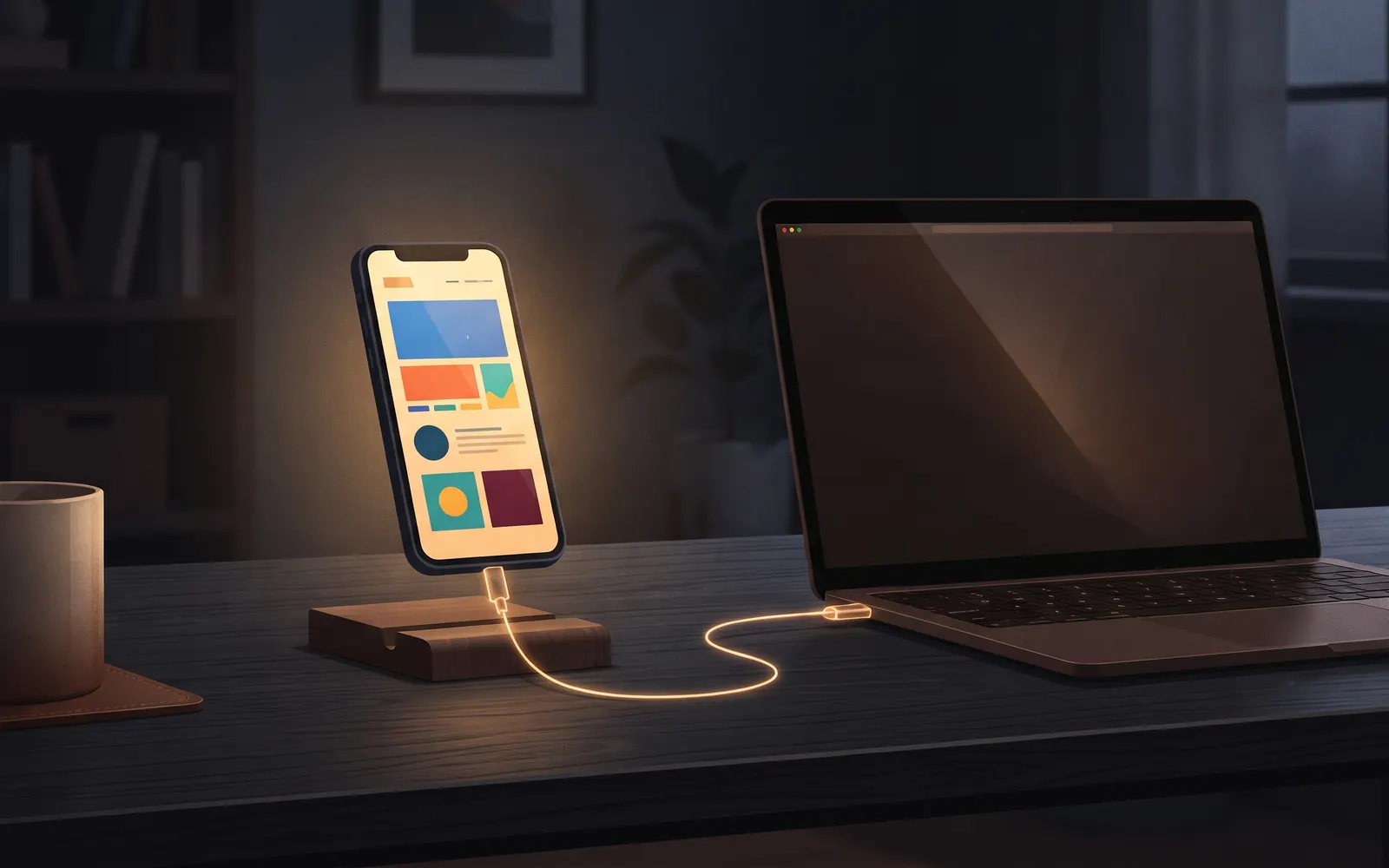
Your app looks fine in a desktop browser, and you need to see it on a real phone: the actual touch targets, the real keyboard, the way Safari or Chrome on Android handles the viewport. You type localhost:5173 into your phone and get nothing. This guide explains why, walks through the same-Wi-Fi fix and its gotchas for Vite and Next.js, compares public tunnels and private networks, and shows a way to get a private preview link with almost no setup.
Why localhost on your phone isn't your computer
localhost always means "this device." On your laptop it points at your laptop. On your phone it points at your phone, where nothing is running on port 5173. That's the whole problem.
To reach your dev server from another device, you need two things:
- An address the phone can reach. Your computer's address on the local network, a tunnel URL, or a private network address.
- A dev server that accepts the connection. Most dev servers only listen on
localhostby default, so even with the right address they refuse connections from anywhere else.
Every option below solves those two things in a different way, with different tradeoffs for effort and exposure.
Same Wi-Fi: use your computer's LAN address
If your phone and computer are on the same network, the simplest path is your computer's local IP address.
Find the address. On Windows, run ipconfig and look for the IPv4 address. On macOS, it's in System Settings under Wi-Fi details, or run ipconfig getifaddr en0. On Linux, ip addr or hostname -I. It usually looks like 192.168.1.23.
Make the dev server listen on the network. This is the step people miss.
For Vite, server.host defaults to localhost. Pass --host to listen on all addresses, per the Vite server options docs:
npm run dev -- --host
# or
npx vite --host
Vite then prints a Network URL you can type into your phone.
For Next.js, bind to all interfaces with -H:
npx next dev -H 0.0.0.0
Then open http://192.168.1.23:3000 on your phone.
The gotchas
- Firewall prompts. Windows and macOS may ask whether to allow incoming connections the first time. If you dismissed it, the phone just times out. Check your firewall settings for Node.
- Next.js blocks unknown dev origins. Next.js blocks cross-origin requests to dev-only assets and endpoints by default. If the page loads but hot reload or client navigation misbehaves from your phone, add the hostname you're using to
allowedDevOriginsinnext.config.js. - Hardcoded localhost URLs. If your frontend calls
http://localhost:8000/api, the phone will call its own localhost and fail. Use relative URLs or a dev proxy. - Guest and office networks. Many isolate devices from each other. The LAN approach simply doesn't work there.
- HTTPS-only features. Service workers, the camera and some other browser APIs need a secure context. Plain
http://on a LAN address doesn't count, so those features won't work in this setup.
When it works, it's fast and free. It just stops working the moment you leave the house.
Public tunnels: ngrok and Cloudflare Tunnel
A tunnel gives your local server a public HTTPS URL that works from anywhere, on any network.
ngrok http 3000
# or a Cloudflare quick tunnel
cloudflared tunnel --url http://localhost:3000
Both print a URL you can open on your phone. They're excellent for sharing a work-in-progress with a client or testing a webhook.
The tradeoff is exposure. By default, anyone who has the URL can open your dev server. Dev servers aren't built to face the internet: they serve source maps, verbose errors and sometimes debug endpoints, and your local app may be connected to a real database. Both services offer access controls, so if you use a tunnel for more than a few minutes, turn them on.
Two more practical notes:
- Vite may reject the tunnel hostname. Vite's
server.allowedHostsallowslocalhostand IP addresses by default. A tunnel's hostname isn't on that list, so add it, or a pattern for its domain, toallowedHosts. - Next.js needs the same treatment. Add the tunnel domain to
allowedDevOrigins, as above.
Private networks: your tailnet
Tools like Tailscale put your phone and computer on a private network that works across any internet connection. Once both are on your tailnet, the phone can reach the computer by its tailnet address or name, with the same --host and -H 0.0.0.0 flags as the LAN setup.
This is a good option if you already use it: nothing is public, it works away from home, and you set it up once. The cost is that you install and sign in to the network client on every device, and the same dev server gotchas (allowed hosts, hardcoded localhost URLs) still apply.
| Option | Works away from home | Public exposure | Setup |
|---|---|---|---|
| LAN IP | No | None | Host flag, firewall |
| Public tunnel | Yes | Yes, unless you add access rules | One command per session |
| Tailnet | Yes | None | Client on each device |
| Ports panel preview | Yes | None | Allow preview per port |
Private preview links from the Ports panel
If you already use Coder IDE to run VS Code on your computer, previews come with it. The editor's Ports panel lists every dev server running on your computer, including ones started in any terminal outside the editor, and shows which app is serving each port. Turn on Allow preview for a port and it gets a private link that only opens for someone signed in to your account; anyone else is turned away.
The workflow:
- Start your dev server the way you always do, for example
npm run dev. - Open Ports in the editor, or in the Android app on your phone, tablet or TV.
- Turn on Allow preview for the port, then tap it to open the preview.
There's no port forwarding, VPN or certificate setup, and it works behind NAT and firewalls, so it works the same on home Wi-Fi, mobile data or a hotel network. On the same home network, the connection goes directly to your computer. Elsewhere it goes through a relay that forwards traffic; your code stays on your machine. The security section covers how devices are approved and removed.
In the editor, the Preview button opens the running app beside your code or in its own tab, so you can edit a component and watch it update. When a preview can't load, it tells you whether nothing is running on that port or the server isn't answering, which saves a round of guessing.
Annotate the preview and send it to Claude
Testing on a phone usually ends with a list of small layout problems: a button too close to the edge, text that wraps badly, a menu hidden under the keyboard. Describing these in words is slow.
In Coder IDE you can annotate the preview directly: tap to pin a note, or sketch over the problem area. Then Add to Claude chat puts your notes and the screenshot into Claude's chat box, and you press send. Claude gets the image and your notes together, which is much clearer than "the thing on the left is a bit off."
Once Claude has made the fix, review its changes file by file before you accept them. Review Claude Code's diffs on your phone walks through that.
Wrap-up
localhost on your phone is your phone. On the same Wi-Fi, a LAN address and a host flag get you there, as long as you handle the firewall and allowed-host checks. Public tunnels work anywhere but expose your dev server unless you lock them down. A tailnet is private and portable if you're willing to install it everywhere. And if your editor already runs on your computer through Coder IDE, the Ports panel gives any dev server port you allow a private preview link that only opens for you.
For the bigger picture of coding on your own machine from anywhere, see VS Code on Android.
Start free. The free plan covers one computer.