How to Use VS Code on Android Phones and Tablets
Want VS Code on Android? Compare Termux with code-server against using your own computer's VS Code from an Android phone, tablet, foldable or Samsung DeX.
The Coder IDE team · · 6 min read
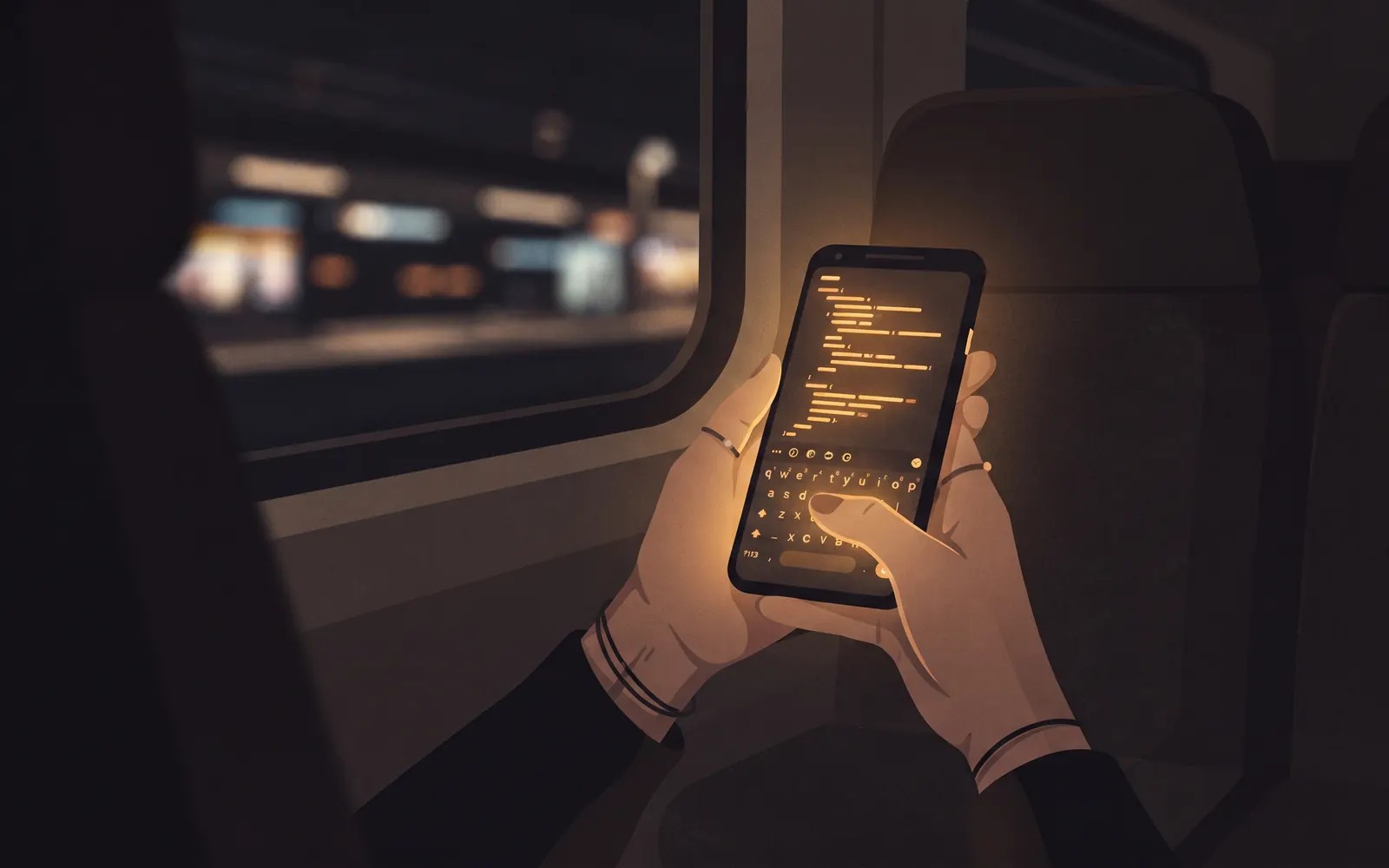
Search for VS Code on Android and you'll find years of Reddit threads asking the same thing, with answers that range from "use Termux" to "buy a laptop". Modern Android tablets and foldables have the screen and the keyboard support to be real coding devices. This guide covers the two approaches that work, what each is good for, and how to make a touchscreen tolerable for terminal work.
There is no VS Code for Android, and DeX doesn't change that
Microsoft builds VS Code for Windows, macOS and Linux. There's no Android build in the Play Store or anywhere else, and the APKs that show up in search results are other editors or repackaged web views.
Samsung DeX often comes up as the answer, and it's a very good desktop-style interface for Android. But DeX runs Android apps in windows. It doesn't run desktop Linux or Windows programs, so it doesn't make VS Code installable. The same goes for desktop mode on other Android devices.
So, as with the iPad, every working option either runs a VS Code-like server on the phone itself, or opens the editor of a real computer somewhere else.
Termux and code-server: it works, but it runs on your phone
Termux gives you a Linux-like environment on Android. Install it from F-Droid or GitHub, since the Play Store version has been outdated for a long time. From there people run code-server, either directly in Termux or inside a Linux distribution installed through proot-distro, and open it in Chrome at a local address.
When it works, it's impressive: a VS Code interface with a terminal, entirely on your phone, even on a plane. The tradeoffs are real, though:
- Everything runs on the phone. Builds, language servers and
npm installcompete with your battery and thermal limits. Medium-sized TypeScript or Rust projects get slow. - Android kills background processes. Since Android 12, the system can stop child processes that apps leave running, which can take down your server mid-session. There are workarounds, but they involve developer settings.
- Open VSX only. code-server uses the Open VSX registry, so Microsoft extensions like Pylance, C# Dev Kit and the C/C++ tools aren't available.
- Native dependencies. Packages that ship prebuilt binaries often have no build for Android on ARM.
Termux is the right choice if you need to code with no computer at all, or you're learning and want a sandbox in your pocket. If you have a computer at home or at work, there's an easier path.
Use your computer's VS Code from Android instead
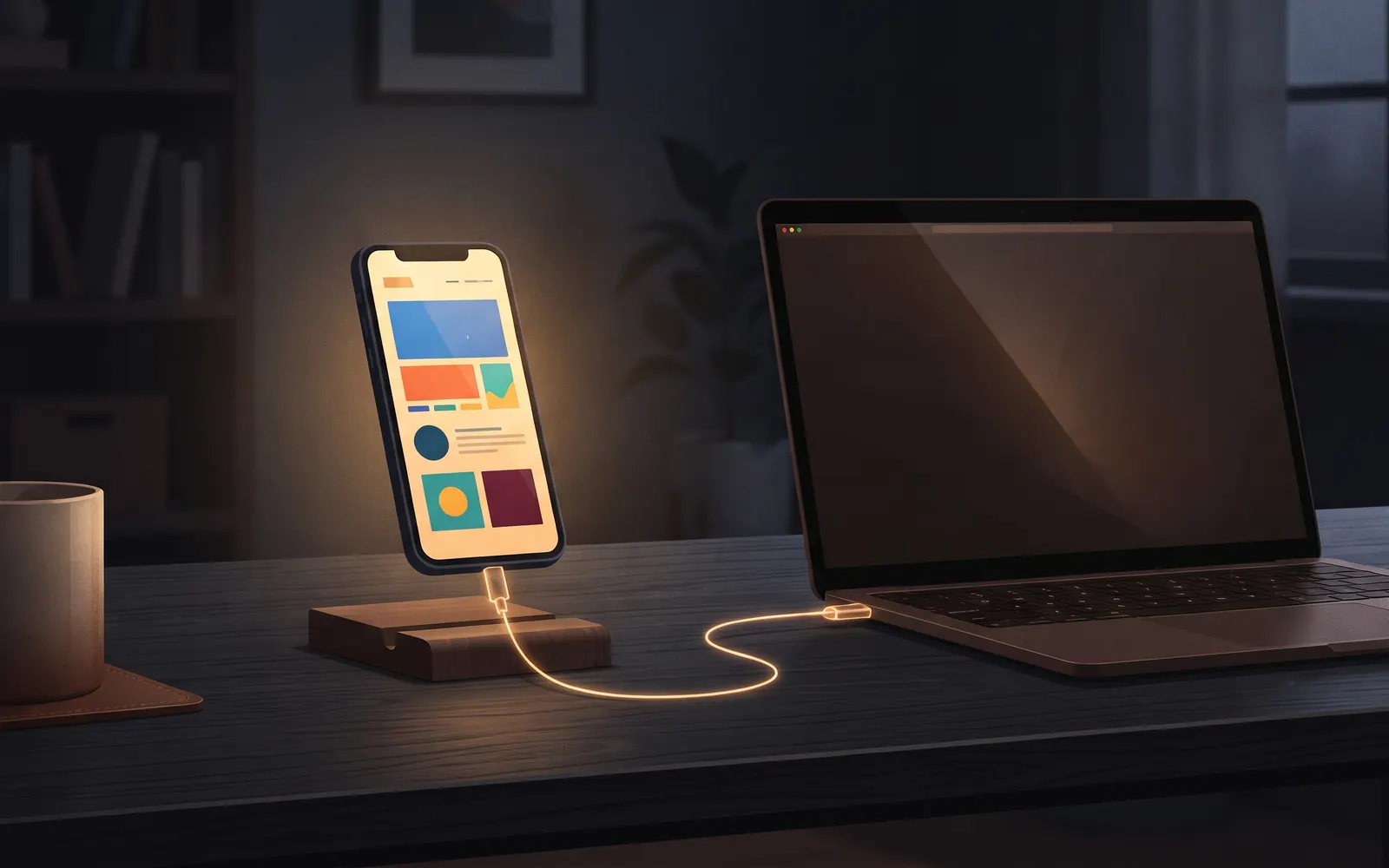
Your computer already has your projects, your toolchain, your extensions and enough RAM. Opening its editor on Android means the phone only has to draw the interface.
There are a few ways to do this. VS Code's Remote Tunnels give you a vscode.dev link you can open in Chrome, after signing in with GitHub or Microsoft. GitHub Codespaces runs a cloud machine instead of yours. And Coder IDE runs Microsoft's VS Code server on your Windows, macOS, Linux or WSL computer and opens it in Chrome or in the Coder IDE Android app. We compare the first and last in detail in Remote Tunnels alternatives.
Setting up Coder IDE takes one install command on the computer. Click Sign in in the desktop app, confirm the code from a browser you're signed in to, and the machine appears on your dashboard. On Android, tap Connect (or Open, if the editor is already running) and you're in your own VS Code, with your extensions, settings, keybindings and terminal. There's no port forwarding or VPN, and it works behind NAT and firewalls. On the same Wi-Fi as your computer, the editor connects directly, and it falls back to the relay automatically when you leave.
What the Android app adds
A desktop editor in a mobile browser works, but a few things are hard on a touchscreen. The Coder IDE Android app, downloadable from the Coder IDE website, is built around those:
- A key bar above the keyboard with Esc, Tab, Ctrl, Alt, arrow keys and Save. It hides itself when you type on a hardware keyboard.
- Toolbar buttons to toggle the sidebar and terminal or open the Command Palette, so you don't need a shortcut for them.
- S Pen Air actions on Samsung devices: press the pen button for the Command Palette, double-press to save, and swipe or circle to switch tabs, toggle panels, undo and redo.
- Stylus selection on tablets: dragging with a stylus selects text in the editor instead of scrolling.
- Ports on the go: see your forwarded ports and open their previews from your phone, tablet or TV.
- Claude Code sessions: see every session on your computers, get notified when one needs your approval, and approve, deny or reply from the app. On a Wear OS watch, the app lists pending approvals while it's open and lets you allow short ones.
The app checks for new versions and asks you to install them, so you stay current without thinking about it.
Phone, foldable, tablet, DeX and TV
The Android app has layouts made for each kind of screen, and it's worth using each for what it's good at.
Phones are best for checking on things: reading code, reviewing a Claude session's changes, running a command, opening a preview. Landscape mode gives the editor noticeably more room.
Foldables are the sweet spot for a lot of people. Unfolded, you get something close to a small tablet, with room for the file tree and the editor side by side. Folded, the same session is there for a quick look.
Tablets with a keyboard case are close to a laptop. Use a hardware keyboard and the key bar gets out of the way. Add a stylus for selecting text and S Pen Air actions for the commands you use most.
Samsung DeX puts the app in a resizable window on an external monitor. With a keyboard and mouse connected, it's a comfortable way to work from a desk where you don't have your computer.
Android TV is a surprisingly good big screen for reviewing code or showing a preview to someone in the room. You sign in by approving a code from your phone.
Tips for terminal work on a touchscreen
The terminal is where touch typing hurts most. A few habits help:
- Use the key bar for control keys. Ctrl then C stops a running process. The up arrow brings back your last command, which saves retyping long ones.
- Search your history. Ctrl then R in bash and zsh searches previous commands. Typing three letters beats typing thirty.
- Give long commands short names. Put them in
package.jsonscripts, a Makefile, or VS Code tasks, then runnpm run devor a task from the Command Palette. - Use the Ports panel instead of typing URLs. It lists dev servers started in any terminal on your computer, and the Preview button opens the running app beside your code or in its own tab. More in opening localhost on your phone.
- Let Claude do the typing. If you use Claude Code, describe the change and review the result instead of typing it out. Approvals and file-by-file review are designed for a phone screen.
- Add a keyboard when it's more than a quick fix. A small Bluetooth keyboard turns a phone or tablet into a usable workstation, and the key bar hides automatically.
Wrap-up
There's no VS Code app for Android, and Termux with code-server is the right answer only when there's no computer to lean on. For everyone else, the better setup is the VS Code you already have, running on your own computer and opened on whatever Android device is in your hand.
Coder IDE's Android app adds the parts a touchscreen is missing: a key bar, stylus support, layouts for every screen size and Claude Code approvals, with short ones allowed from a Wear OS watch. If you also use an iPad, VS Code on iPad covers the browser side.
Start free. The free plan covers one computer, and Pro adds unlimited devices.