Your Computer Is the Best Cloud Dev Environment You Own
A remote development setup that uses the computer you already own: code from anywhere in a browser, keep your code at home, skip the VPN and port forwarding.
The Coder IDE team · · 6 min read
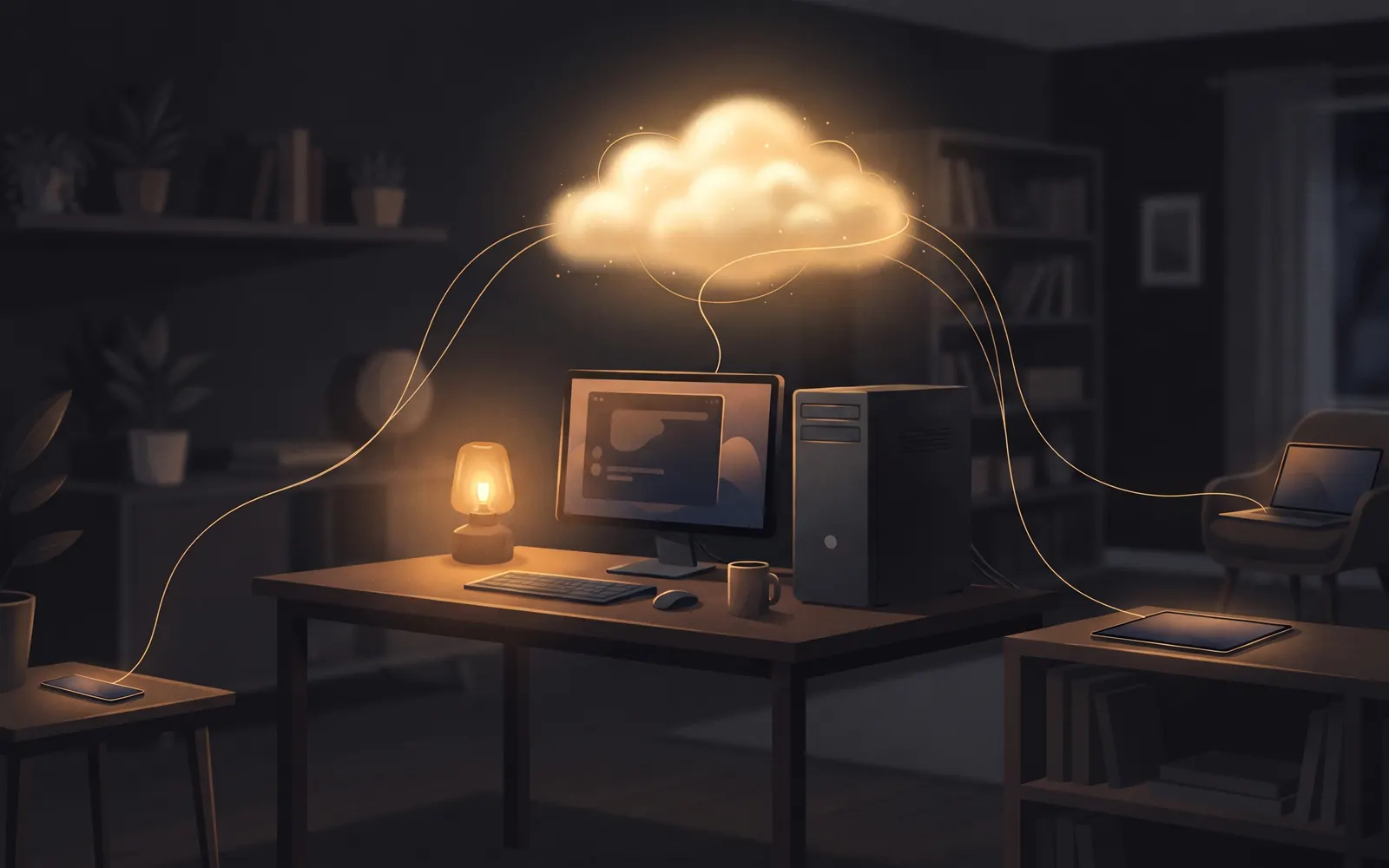
Every few months someone asks how to code from an iPad, a Chromebook or a cheap laptop, and the answers land in the same place: use it as a window into a real computer somewhere else. Most people then go and rent that computer from a cloud provider, while the one on their desk sits idle. This post makes the case for using the machine you already own as your remote dev environment, what used to make that hard, and when a cloud environment is still the better call.
The thin-client consensus
Read a few threads on coding from a tablet and a pattern shows up. In a Hacker News discussion of coding on an iPad with self-hosted VS Code, commenters agree the hardware is strong but the software limits make it a poor development machine on its own. An Ask HN on coding on an iPad reaches the same answer: treat the device as a thin client and connect to a real machine over SSH or a browser-based VS Code.
That's good advice. The question is which real machine. The usual options:
- A cloud dev environment, such as GitHub Codespaces or Ona, billed by usage or plan.
- A rented VPS you maintain yourself.
- The computer you already have, at home or at the office.
The third option is often the most capable of the three, and the one people skip because connecting to it used to be painful.
Cost: you already paid for this computer
Your desktop or main laptop probably has more RAM, more disk and a faster CPU than the cloud machine you'd rent for everyday work. It may have a GPU. All your tools, SDKs, databases and dotfiles are already set up.
Cloud environments charge for that capacity by the hour. GitHub Codespaces, for example, gives personal accounts 120 core-hours a month free, then charges $0.18 an hour for a 2-core machine, plus storage that's billed even while a codespace is stopped. That's fair pricing for what it is, and for light use it's cheap. It gets less cheap with bigger machines, longer hours, or a team with no free quota. The Codespaces comparison works through the numbers.
With your own computer, the hardware cost is already spent. What's left is electricity and whatever you pay for remote access.
Privacy: your code stays on your machine
When you code in a cloud environment, your source, your .env files and your build artefacts live on someone else's infrastructure. For many projects that's fine. For client work under an NDA, personal projects you'd rather keep private, or anything with sensitive data, it's a real consideration.
When the editor runs on your own computer, files are read and written there. The browser on your tablet shows the editor; it doesn't receive a copy of the repository. With Coder IDE, traffic between your device and your computer goes through a relay that forwards it, and your code stays on your machine.
Networking used to be the hard part
So why doesn't everyone do this already? Because reaching a home computer from the outside has historically meant some combination of:
- Port forwarding on a router you may not control.
- Dynamic DNS, because your home IP address changes.
- A VPN to keep the editor off the public internet.
- TLS certificates, because browsers block a lot of features on plain HTTP.
- A reverse proxy to tie it together, as in Tailscale's guide to coding on an iPad with code-server and Caddy.
Each piece is learnable. Together they're an afternoon of setup and an ongoing job of keeping it working, and it all breaks on networks that block inbound connections, such as dorms, offices and mobile hotspots.
Tools like Tailscale have made the network part much easier, and if you already run a tailnet, building on it is a reasonable choice. You'd still be assembling and maintaining the editor side yourself.
Relay plus direct connection, explained simply
Coder IDE takes a different route. You install it on your computer with one command, click Sign in in the desktop app, and confirm the code from a browser you're signed in to. Your computer appears on your dashboard. Tap Connect (or Open, if the editor is already running) and you're in VS Code: Microsoft's own VS Code server, with your extensions, settings, keybindings and terminal.
Here's what happens on the network, without the jargon:
- No inbound ports. Your computer connects out, so it works behind NAT and firewalls. No port forwarding, VPN or certificates.
- A relay in the middle. When you're away from home, traffic goes through a relay that forwards it between your device and your computer.
- Direct at home. When your device and computer are on the same home network, they connect directly, and fall back to the relay on their own if that fails or you change networks.
- You approve every machine. A new computer only joins your account after you confirm its code, and the approval shows which computer is asking, with a warning if it's on a different network than you.
- Removal is instant. Remove a device from your dashboard and its token stops working immediately.
The security overview covers this in more detail.
When cloud environments still win
Your own computer isn't always the right host. Pick a cloud environment when:
| Situation | Better choice |
|---|---|
| You need a fresh, identical environment per branch or pull request | Cloud environment |
| New contributors need to start in minutes with no local setup | Cloud environment |
| Your only computer is a laptop that's usually closed | Cloud environment |
| You need far more compute than you own, briefly | Rent it by the hour |
| You have a capable computer that can stay on | Your own computer |
| Code must not leave your machine | Your own computer |
| You want your existing tools, GPU and local files | Your own computer |
Plenty of developers use both. Disposable cloud workspaces for open-source contributions, and their own machine for the daily work.
A one-computer starter setup
If you want to try this, one computer is enough, and Coder IDE's free plan covers exactly one.
- Pick the host. A desktop that stays on is ideal. Windows, macOS, Linux and WSL all work.
- Install and sign in. Run the install command from your dashboard, click Sign in, confirm the code.
- Open it from another device. Any modern browser works. On a Chromebook or iPad, install it as a web app from the browser so it opens like an app. On Android, use the app, which adds a key bar for Esc, Tab, Ctrl, Alt and arrows above the keyboard.
- Run your project. Start the dev server in the terminal as usual. Turn on Allow preview for its port in the Ports panel to get a private link that only opens for you; the Preview button opens the running app beside your code or in its own tab.
- Turn on auto-suspend. Idle editors shut down after a timeout you choose, and it waits for any running Claude Code task to finish first.
- Add Claude Code if you use it. You can follow sessions, get notified when one needs approval, and reply from your phone.
The editor and the desktop app keep themselves up to date, so there's nothing to maintain after this. For device-specific tips, see VS Code on iPad and coding on a Chromebook without Linux.
Wrap-up
The thin-client advice is right; the missing piece was a painless way to reach the computer you already own. With networking handled and your code staying at home, your desk machine becomes a dev environment you can open from a tablet, a Chromebook or a phone. Cloud environments still earn their place for disposable workspaces and onboarding, and nothing stops you from using both.
Start free. The free plan covers one computer, and Pro adds unlimited computers when you want more.